Invoice Items – Payment
Customers & Billing
Introduction
The Invoice Items – Payment subtracts the amount of a customer payment from the total amount of an invoice or statement. Payment items are used when you receive a partial payment on an invoice. An example might be a down payment. If you receive full payment at the time of the sale, use a sales receipt form instead of a payment item on an invoice.
Form Access
- From the main menu, click Customers | New Invoice Item, or
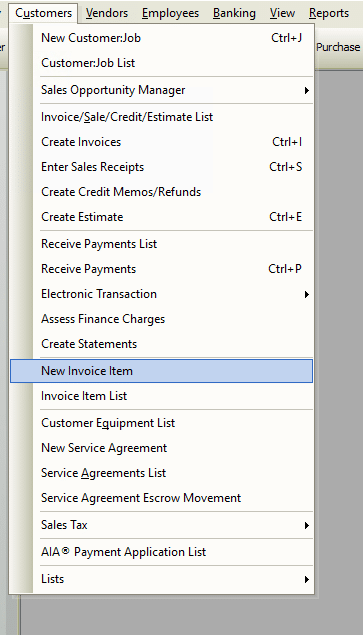
New Invoice Item File Path
- From the toolbar, click the Add New Item button.

New Item from Toolbar
Usage – Invoice Items – Payment
In short, select an invoice item Type from the drop-down list then complete the necessary fields in that form. Each item type has different fields.
General Tab
Complete the fields in the General tab (illustrated below) as follows:
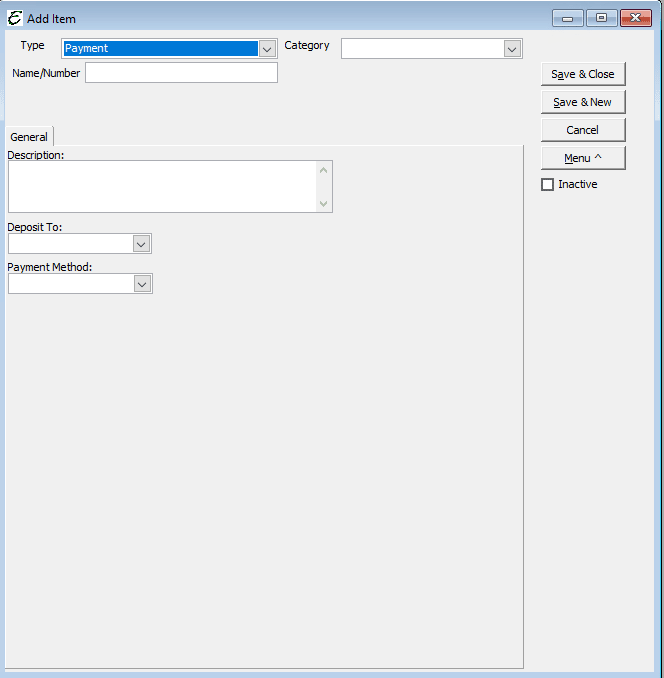
Payment – General Tab
- Description – An explanation of the item.
- Deposit To – Based on your accountant’s recommendation, choose the account from your Chart of Accounts in which to deposit the payment.
- Payment Method – Choose a payment method from the drop-down list. If necessary, setup a new payment method by clicking <Add New> from the list. This will open the Add Payment Method dialog box, used for that purpose. Simply enter a payment name in the Payment Method field, then choose a Payment Type from the drop-down list.
- Inactive – When ticked, the Inactive checkbox causes the method to become inactive.
Example of Invoice Items – Payment
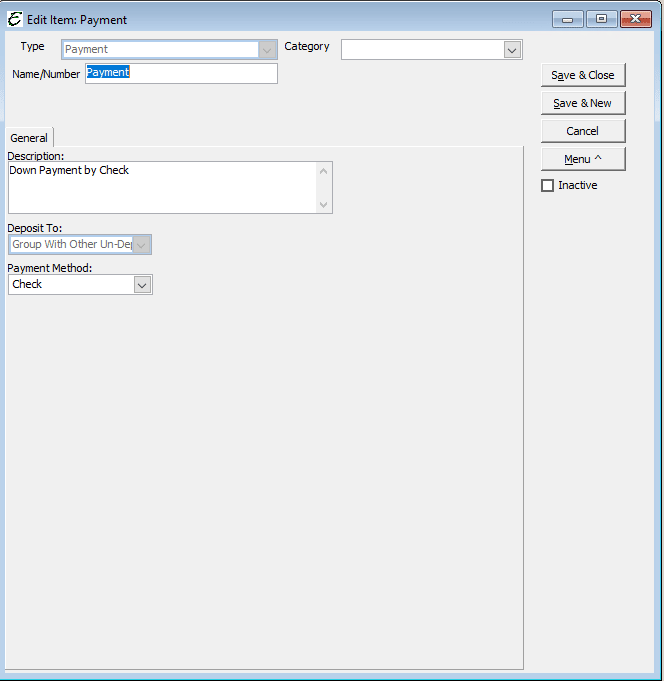
Payment – Example
Related Content
Payment Method List
Aptora Mobile II – Approving Invoices & Applying Payments