Aptora Mobile II – Add Customer:Jobs
Customers & Billing
Introduction
The Aptora Mobile II – Add Customer:Jobs has been designed to include corresponding tabs displayed on the “Customer” form in Total Office Manager. These data view options are displayed across the “Customer:Add” field on the “Customer” form. When completing information for the first time, click the “Add” button in the upper right corner to save. Once saved, the record is stored on the database. This means that the record is also available for view within Total Office Manager.
Form Access
- From the Dashboard, click Master Lists | Customers. Then, click the Hamburger menu and select ‘Create Customer’.
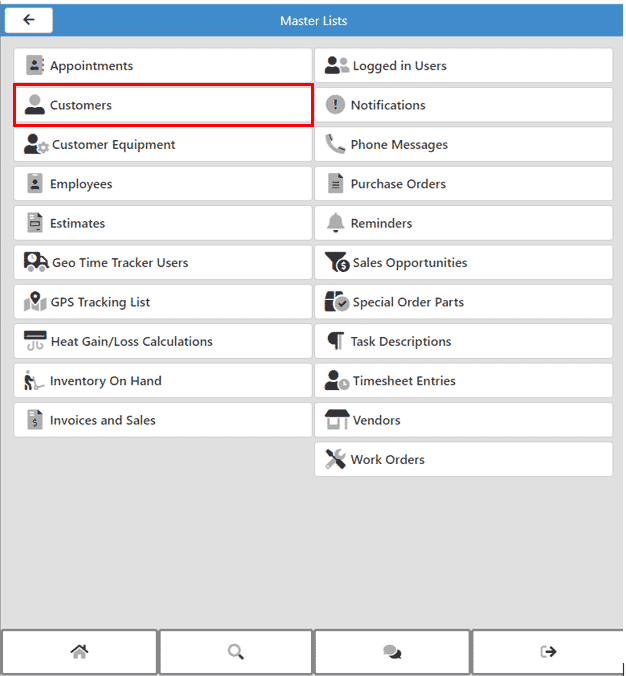
Customers File Path
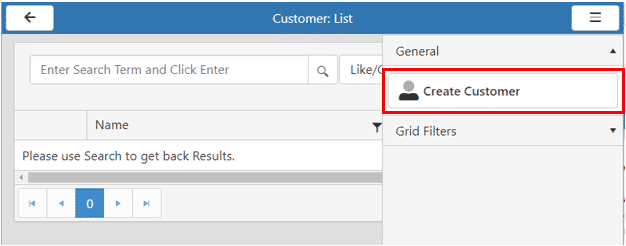
Create Customer
Aptora Mobile II – Add Customer:Jobs
To add a new customer in Aptora Mobile II, there are six (6) tabs that may be completed – Main, Details, Addresses, Contact, Payment, and Job.
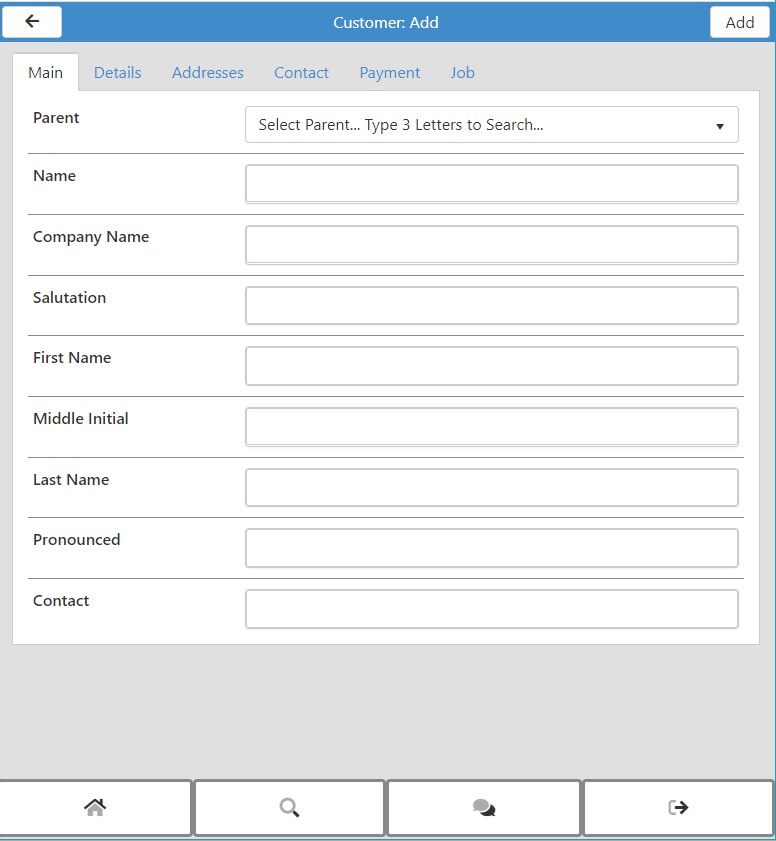
Customer Add New
Main Tab
This section of the form allows users to add Parent, Name, Company Name, Salutation, First Name, Middle Initial, Last Name, Pronounced, and Contact.
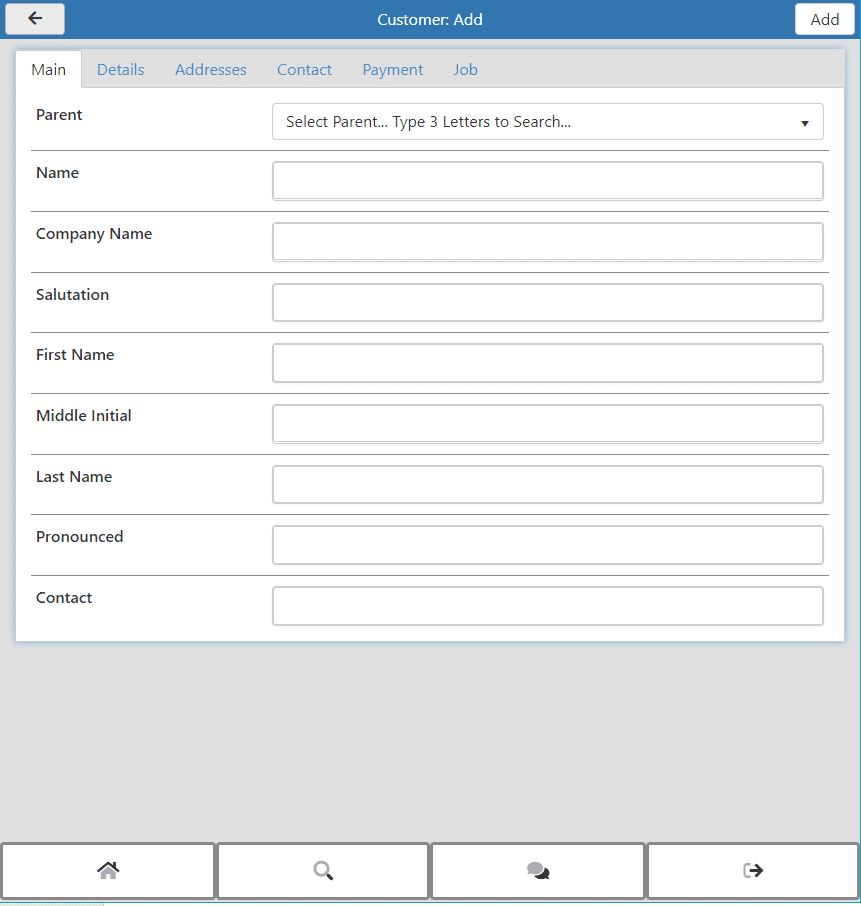
Customer Add New – Main Tab
Details Tab
This section of the form allows users to add Type, Terms, Sales Representative, Marketing, Marketing Type, Markup/Down Method, Department, Tax Code, Tax Item, and Notes.
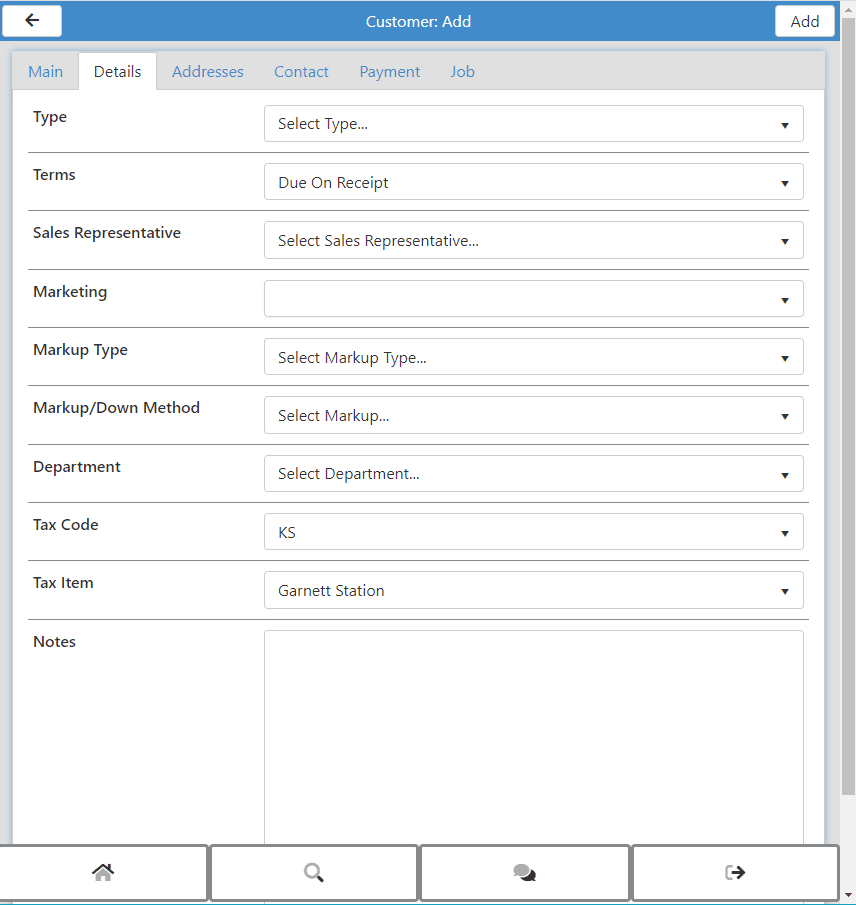
Customer Add New – Details Tab
Addresses Tab
This section allows users to add billing and work address information.
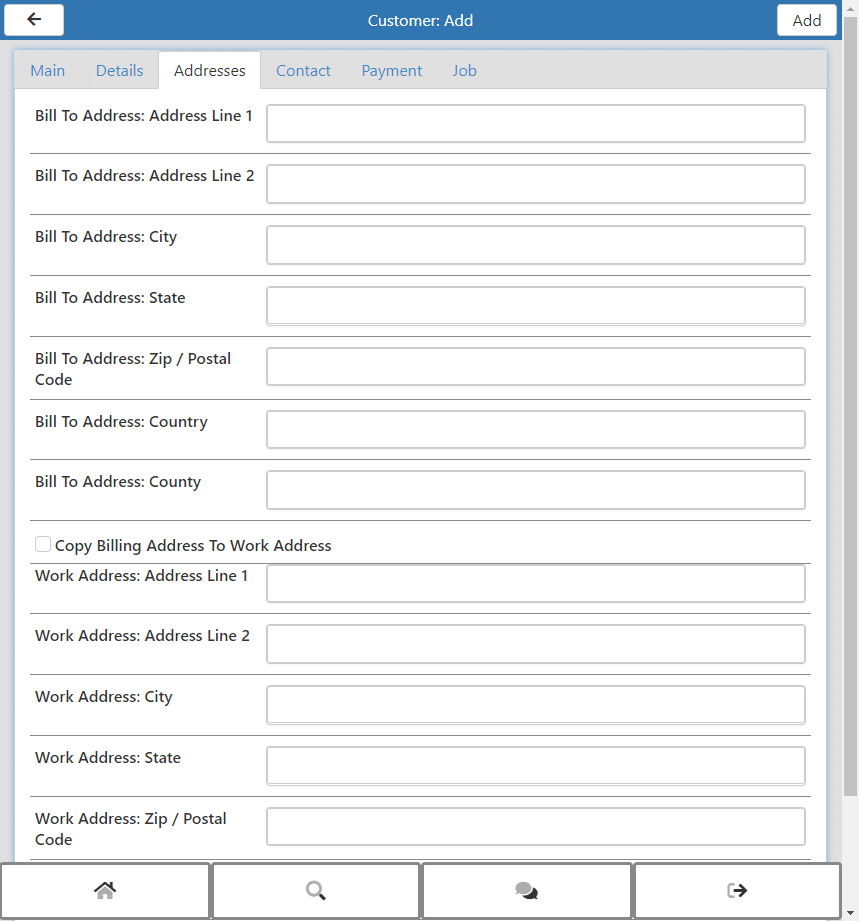
Customer Add New – Addresses Tab
Contact Tab
The Contacts section will display information found on the “Contacts” tab of the “Customer:Job” form in Total Office Manager. This section allows users to add Automated Contact Method, Phone, Extension, Fax, Alternate Phone, Cell Phone, Alternate Contact, Owner, Email and Website information.
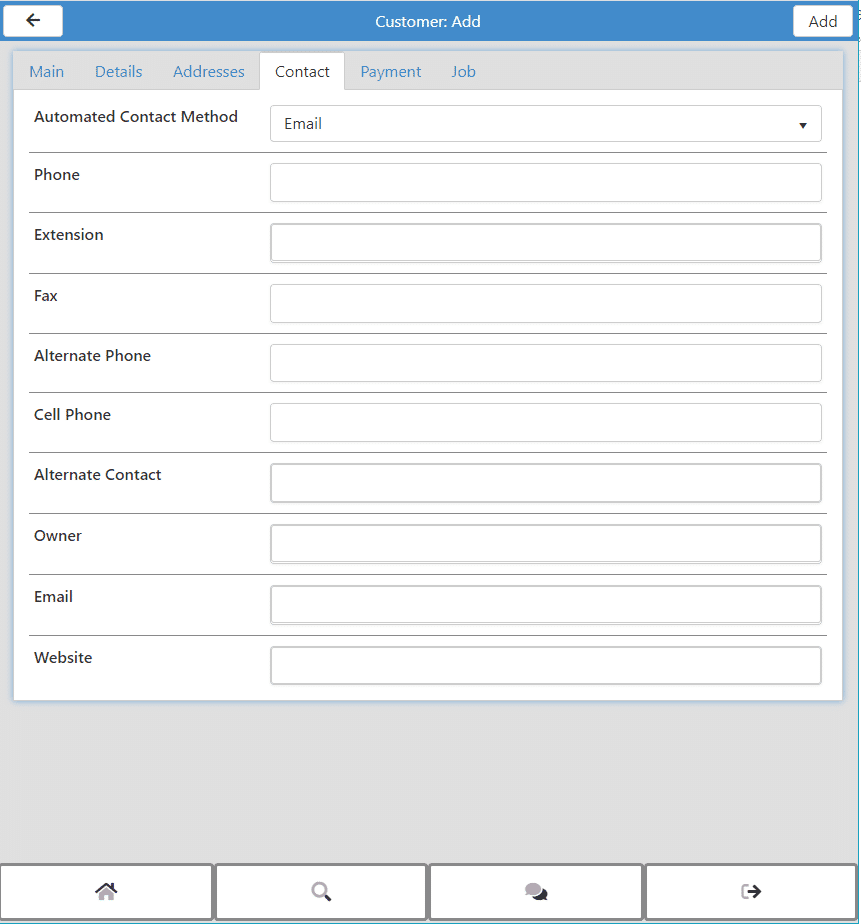
Customer Add New – Contact Tab
Payment Tab
The Payment Info section gives the user the ability to add Customer:Job payment information. This section allows users to add A/R Account, Credit Limit (if applicable), Payment Method, and place a customer on a credit hold.
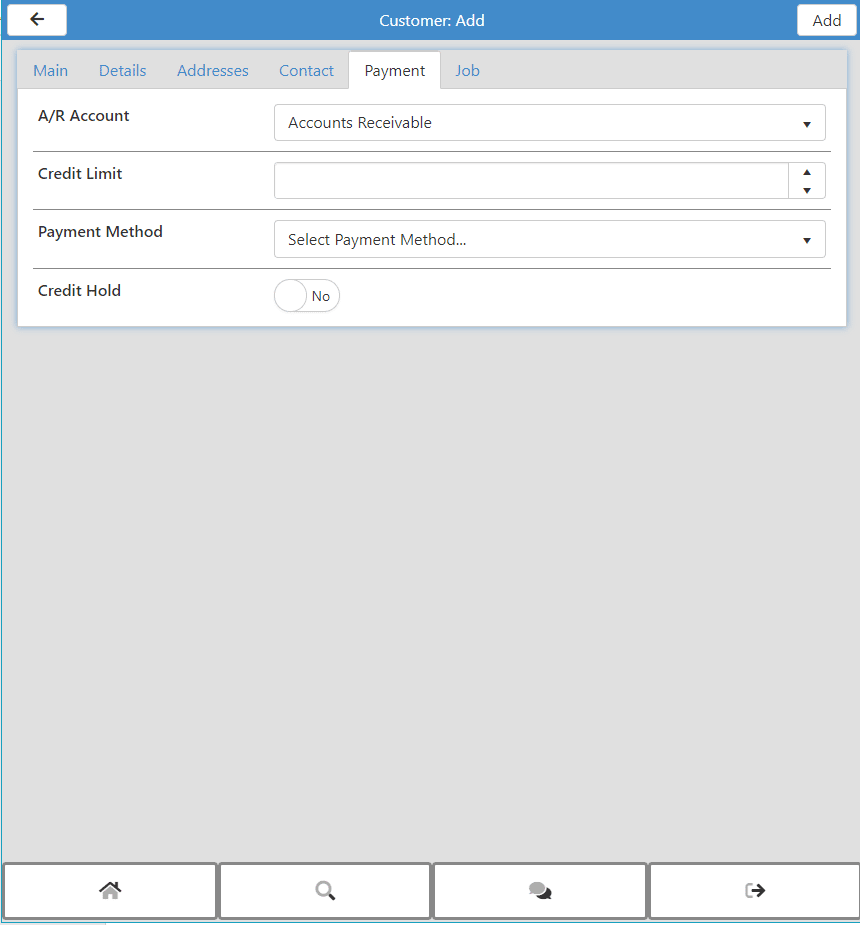
Customer Add New – Payment Tab
Job Tab
This section allows a user to enter or select information related to the Customer:Job. This section allows users to add Job Status, Job Type, Forman, Start Date, Projected End, Finish Date, Contract Number, Contract Job Number, Description, and Job Details.
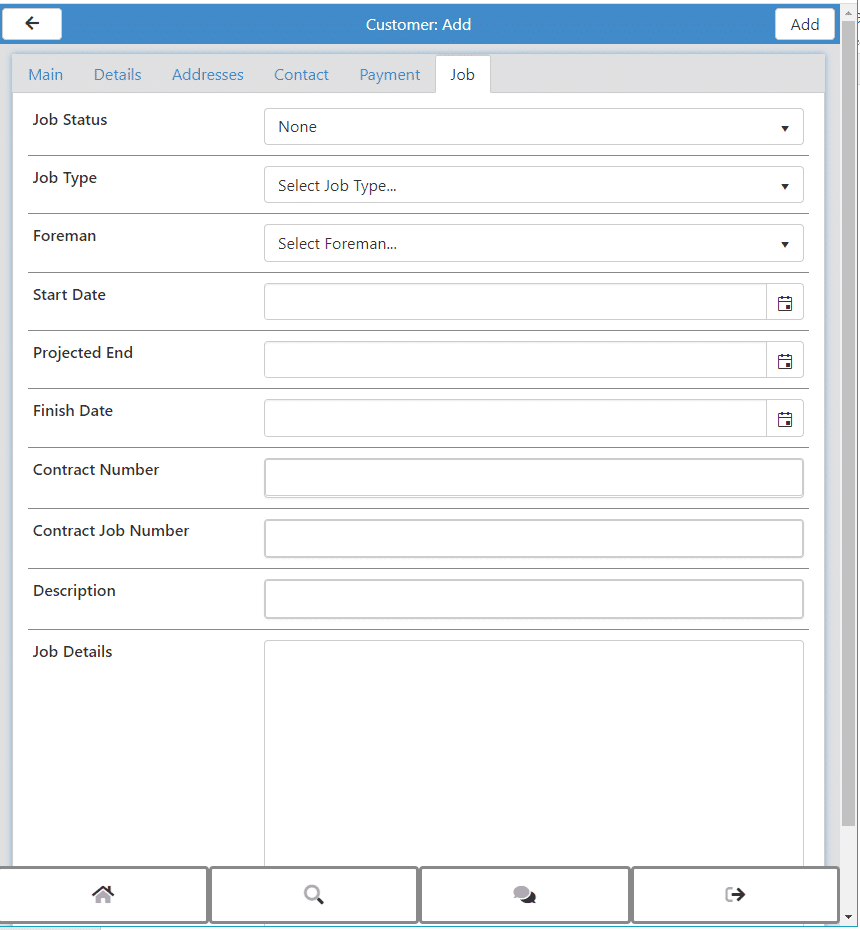
Customer Add New – Job Tab