Customer Portal
General
Customer Portal
The Customer Portal gives your customers a secure, self-service place to review their work orders, estimates, and invoices — and to approve estimates online. Customers reach the portal through a secure link sent in their email. There is no username or password to create or remember: clicking the link logs the customer in automatically and shows only their own records.
The portal is branded with your company name and logo, and every list a customer sees is filtered to that customer alone. It is the same tool behind the “Approve Estimate” and “Open my portal” buttons in the emails your customers receive.
Turning the Portal On
Portal access is controlled in two places: a one-time company-wide setting, and a per-customer switch you control day to day.
Company Setting (one time)
The Customer Portal must be enabled for your company before any links will work. This is a system-level setting — if the portal is not yet active for your company, contact Aptora to have it turned on. Once it is on, the “Open my portal” footer automatically begins appearing on the estimate and invoice emails you send.
Allowing Access for a Customer
You decide which customers can use the portal, one Customer:Job at a time.
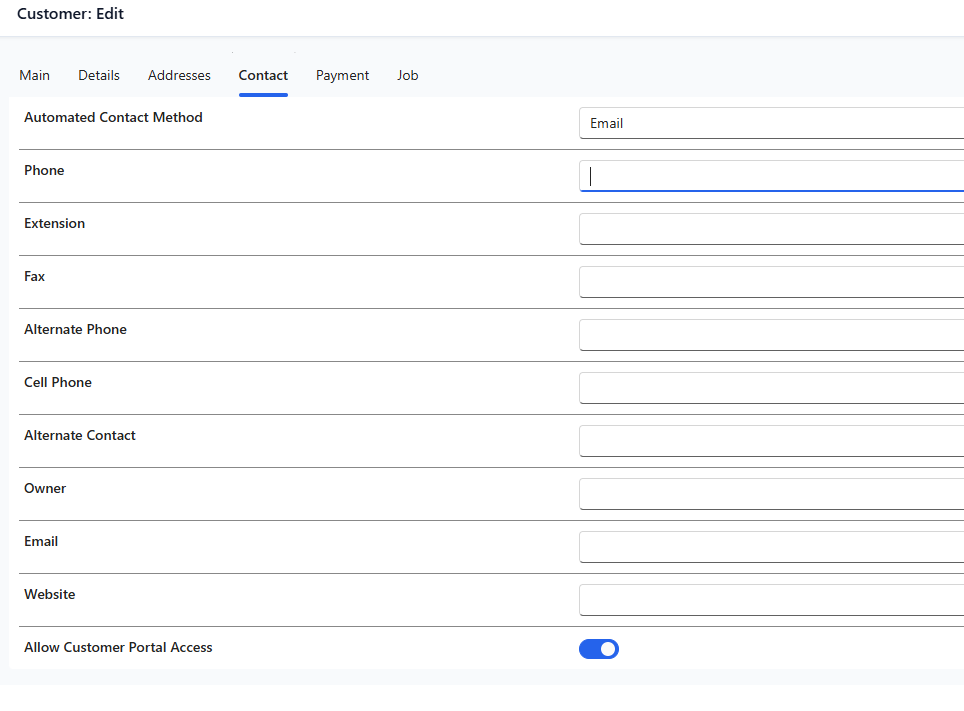
- From the main menu, open Customers and select the Customer:Job.
- Click Edit, then open the Contact tab.
- Turn on Allow Customer Portal Access.
- Click Save. This creates the customer’s secure portal account.
Allow Customer Portal Access toggle on the Customer Edit Contact tab
To remove access later, return to the same screen and turn the switch off. The customer’s portal account is deactivated and their links stop working.
How a Customer Gets In
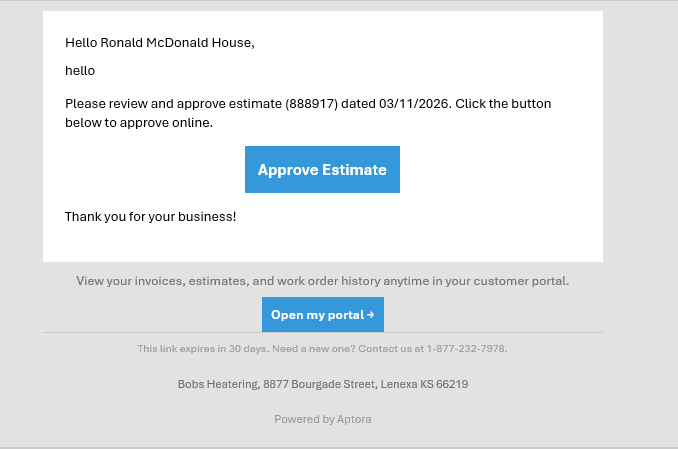
Customers never type a web address or sign in. They receive an email from you and click a button:
- Estimate and invoice emails include an “Open my portal” button in the footer once the portal is enabled.
- Approval emails (see the Estimate Approvals help topic) include an “Approve Estimate” button that opens the portal directly to that estimate.
- Automated emails can include a portal link as well.
Portal & Approval Email – the customer clicks a button to enter the portal.
The secure link is good for 30 days. After it expires, simply resend the estimate, invoice, or approval email to generate a fresh link.
What the Customer Sees
After clicking the link, the customer lands on a branded home page showing your company name and logo, a “Welcome, {customer name}” greeting, and three cards:
- Work Orders – the customer’s work orders.
- Estimates – the customer’s estimates, where they can review and approve.
- Invoices & Sales – the customer’s invoices and sales history.
- Customer Portal Home – branded card menu scoped to the logged-in customer
Every list and record the customer opens is limited to their own Customer:Job. Customers cannot see other customers’ information, and they cannot change accounting data — the portal is for reviewing their records and approving estimates.
Tips
- There is no password for customers to manage. Access is entirely through the secure email link, which keeps support calls down.
- Links expire after 30 days. If a customer says their link no longer works, resend any estimate, invoice, or approval email and they’ll get a new one.
- The “Open my portal” footer only appears on outgoing emails once the portal is enabled for your company. If you don’t see it, the company setting is off.
- Portal access is granted per Customer:Job. Turning it on for one customer does not affect any others.
- Turning the Allow Customer Portal Access switch off immediately deactivates that customer’s access without deleting any of their records.
FAQ
Does my customer need to create an account or remember a password?
No. The portal uses a secure link sent to the customer by email. Clicking it logs them in automatically. There is nothing for them to sign up for and no password to reset.
The customer says their link stopped working. What happened?
Portal links expire 30 days after they are generated. Resend the estimate, invoice, or approval email and the customer will receive a fresh, working link.
Can a customer see other customers’ work orders, estimates, or invoices?
No. The portal is scoped to the single Customer:Job the link belongs to. Customers only ever see their own records.
How do I stop a customer from using the portal?
Open the customer, click Edit, go to the Contact tab, and turn off Allow Customer Portal Access. Their portal account is deactivated right away.
Which emails contain the portal link?
Estimate and invoice PDF emails (via the “Open my portal” footer), estimate approval emails (via the “Approve Estimate” button), and automated emails that include the portal placeholder. All of these require the portal to be enabled for your company.
Can customers change or delete anything in the portal?
No. The portal is read-only for their records, with the one exception of approving estimates and approving or declining individual line items. See the Estimate Approvals help topic.