Estimate Approvals
General
The Approvals feature lets a customer approve an estimate online — by signing it — and lets them approve or decline individual line items before they sign. Approvals happen through the Customer Portal: you send the estimate for approval, the customer clicks a secure link in their email, reviews the estimate, and signs. When they approve, the estimate is marked approved with the date and their signature, and the staff you designate are notified automatically.
There are two parts to approvals:
Estimate sign-to-approve – the customer signs to approve the whole estimate.
Line-item Approve/Decline – the customer accepts or declines individual items, and declined items drop off the total before they sign.
Form Access
From an estimate, open the Links panel on the right and click Send for Approval.
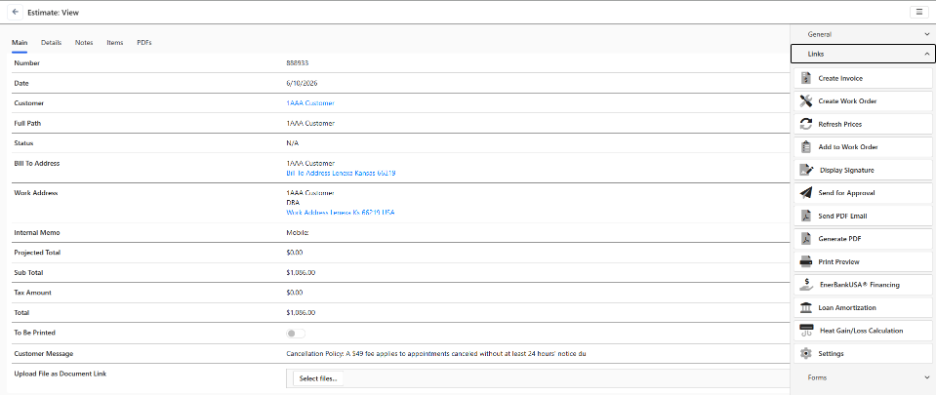
The Send for Approval option appears only when the estimate has not already been approved and you have edit access to it. Once an estimate has been approved, this option is replaced by the approval details (see After the Customer Approves below).
Sending an Estimate for Approval
- Open the estimate and click Links → Send for Approval.
- In the dialog, confirm the Customer email. It is pre-filled from the customer record when available; edit it if needed.
- Optionally type a Cover note — a short message included in the email.
- Click Send.
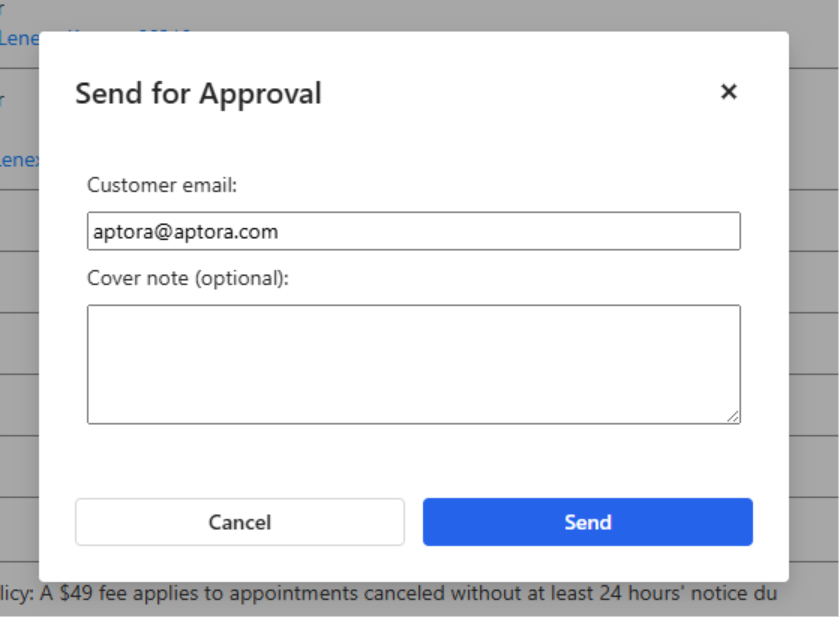
The customer receives an approval email with an Approve Estimate button. Clicking it logs them into the portal (no password required) and opens that estimate’s print preview, ready to review and sign.
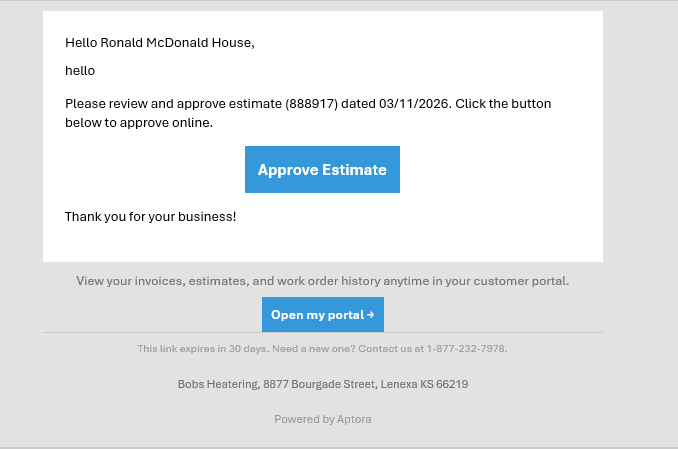
Approval email received by the customer with an Approve Estimate button
Approval Email – the customer clicks Approve Estimate to review and sign
How the Customer Approves
Reviewing and Signing
On the estimate print preview, the customer taps Capture Signature. A signature dialog opens where they:
- Type their printed name (required).
- Sign on the signature pad.
- Submit.
Signing an estimate records the approval: the estimate is flagged as approved with the approval date, the typed name, and the captured signature image. If location capture is enabled for your company, the signing location is stored with the signature as well. The staff you designate are then notified automatically (see Approval Notifications).
Approving or Declining Individual Items
If the estimate’s printout is configured to include the declined-item option, each line item shows a green Approve button and a dark-red Decline button. The customer can decline items they don’t want; declined items are removed from the total, and the amount the customer signs for is recalculated from the remaining items. Declining an item on a group line cascades to that group’s sub-items.
After the Customer Approves
Once an estimate is approved, the Send for Approval option on the estimate is replaced by text reading “Approved on {date} by {name}”, so anyone opening the estimate can see at a glance that it was approved, when, and by whom. An estimate that has already been approved cannot be sent for approval again.
To view the captured signature at any time, open the estimate and click Links → Display Signature. This shows the signature image along with the printed name, date, and location (if captured).
Approval Notifications
You choose which employees are notified when a customer approves an estimate. These settings live under the Notifications settings area, on the Estimates tab, and include:
- Turn approval notifications on or off.
- Select the employees who should be notified.
- Choose the contact method for the notification.
- Choose whether to include the estimate details in the notification.
When an estimate is approved, each designated employee receives a summary that includes the estimate number, date, sales rep, total, the approver’s name, and the approval timestamp.
Tips
- A customer does not need a password to approve. The Approve Estimate button logs them straight into the portal and opens the estimate.
- Send for Approval only appears before approval and only for users with edit access. After approval it is replaced by the “Approved on… by…” text.
- Declined line items automatically drop off the total, so the customer signs for exactly what they approved. Item-level Approve/Decline buttons appear only when the printout’s declined-item option is enabled.
- Approval links expire after 30 days (the same secure link used by the portal). If a link expires, just send the estimate for approval again.
- Set up who gets notified before you start sending estimates for approval, under Notifications → Estimates, so approvals don’t go unnoticed.
- Use Links → Display Signature to review the signature that was captured on an approved estimate.
FAQ
Does my customer need to log in to approve an estimate?
No. The approval email’s Approve Estimate button uses a secure link that logs the customer into the portal automatically and opens the estimate for review and signing.
What is recorded when a customer approves?
The estimate is marked approved with the approval date, the customer’s typed printed name, and their captured signature image (plus the signing location if that option is enabled). The estimate then displays “Approved on {date} by {name}.”
Can the customer approve some items and decline others?
Yes, when the estimate’s printout includes the declined-item option. Each line item shows Approve and Decline buttons, and declined items are removed from the total the customer signs for.
Who finds out when an estimate is approved?
The employees you select under Notifications → Estimates. You control whether notifications are on, who receives them, the contact method, and whether estimate details are included.
Where do I see the signature after the estimate is approved?
Open the estimate and click Links → Display Signature to view the signature image, printed name, date, and location.
Can an already-approved estimate be sent for approval again?
No. Once an estimate is approved, the Send for Approval option is replaced by the approval details, and the estimate cannot be re-sent for approval.
How does the customer get the approval email if they’ve never used the portal?
Sending an estimate for approval turns on portal access as part of the process and emails the customer a secure link. They don’t need any prior setup on their end.
Related Content
Help Topic: Customer Portal
Help Topic: Emailing Estimates and Invoices