Work Order List
Scheduling & Work Orders
Introduction
The Work Order List displays all work orders entered into Total Office Manager. This form makes it easy to quickly locate a work orders for viewing or editing. Use this form to create a new record or select a record to edit, delete, inactivate. You have the ability to filter and sort these records in many different ways.
Form Access
- From the main menu, click Company | Work Order List or
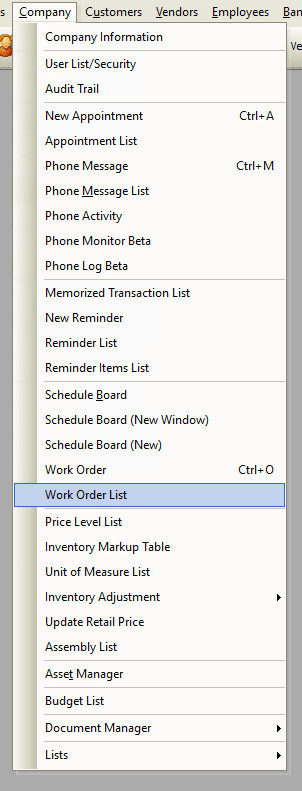
Work Order List File Path
- Click the drop-down arrow just right of the Add New Work Order toolbar button. (Hint: the button has a hammer on it. Think of it as “hammering out a new work order”.
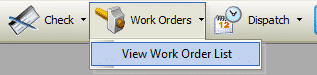
Work Order List Toolbar
Field Definitions
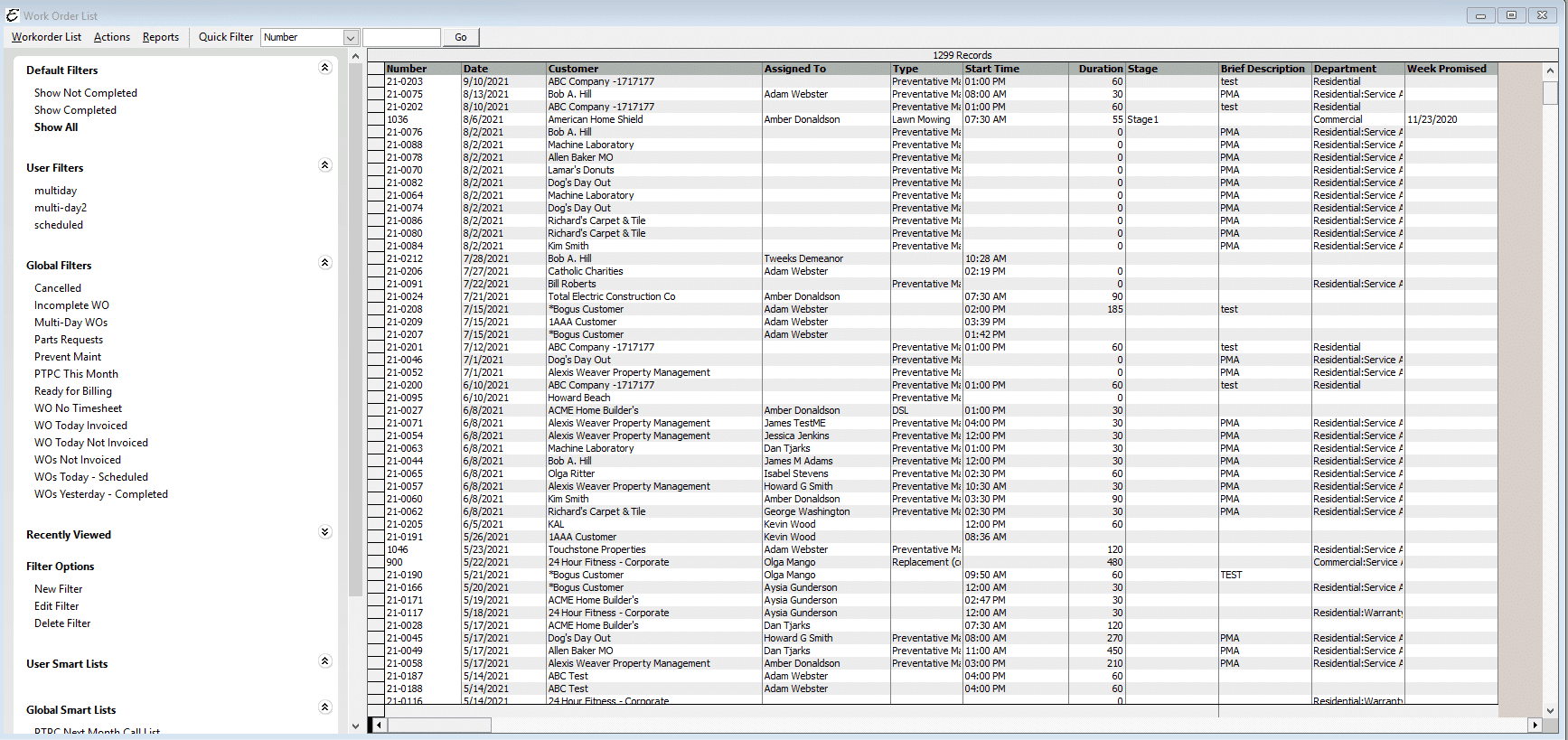
Work Order List
| Number – | This refers to the work order number that was assigned to the record. |
| Cust:Job – | This refers to the cust:job that the work order was created for. |
| Date – | The Date the work order is/was scheduled for. |
| Start Time – | The scheduled starting time of the work order. |
| Duration – | The amount of time (in minutes) allotted for the work order. |
| Status – | The status of the work order (scheduled, not-scheduled, completed). |
| Priority – | The priority of the work order. (High, Medium, Low) |
Step-By-Step
- Open the form and sort and filter the list if desired.
- To create a new work order, right-click anywhere in the list and choose New Work Order from the pop-up menu.
- To edit a work order, right-click on it and choose Edit Work Order from the pop-up menu.
- To delete a work order, right-click on it and choose Delete Work Order from the pop-up menu.
- To cancel a work order, right-click on it and choose Mark as Canceled from the pop-up menu (we recommend this instead of deleting a work order).
Tips
- You can delete or inactivate multiple records. To highlight multiple work orders, press and hold your CTRL key and click each record. You may also select a range of work orders by highlighting the first record in that range, pressing and holding your left Shift key, and clicking the last record in that range.
- Remember that you can change the order of the columns by dragging to the preferred location on the grid.
- Right-click within the list to select form preferences. Speed up performance by unchecking any unnecessary form that a user doesn’t need immediate access to see.
Related Content
Work Order Types List
Work Order Form (overview, add, and edit)